What is a CNAME Record?
A simple guide to CNAME records — what they are, how they work, when to use them, and the rules you need to know.
Quick Answer
A CNAME (Canonical Name) record is a DNS record that points one domain name to another domain name — like a forwarding address. Instead of mapping directly to an IP address (like an A record does), a CNAME says "this domain is an alias for that domain." For example, www.example.com might have a CNAME pointing to example.com, so both end up at the same server.
What is a CNAME Record?
CNAME stands for Canonical Name. It's a type of DNS record that creates an alias — pointing one domain name to another domain name.
Think of it like mail forwarding. If you move to a new house, you set up mail forwarding so anything sent to your old address gets delivered to your new one. A CNAME record does the same thing for domain names — it tells the DNS system "don't look here, go look over there instead."
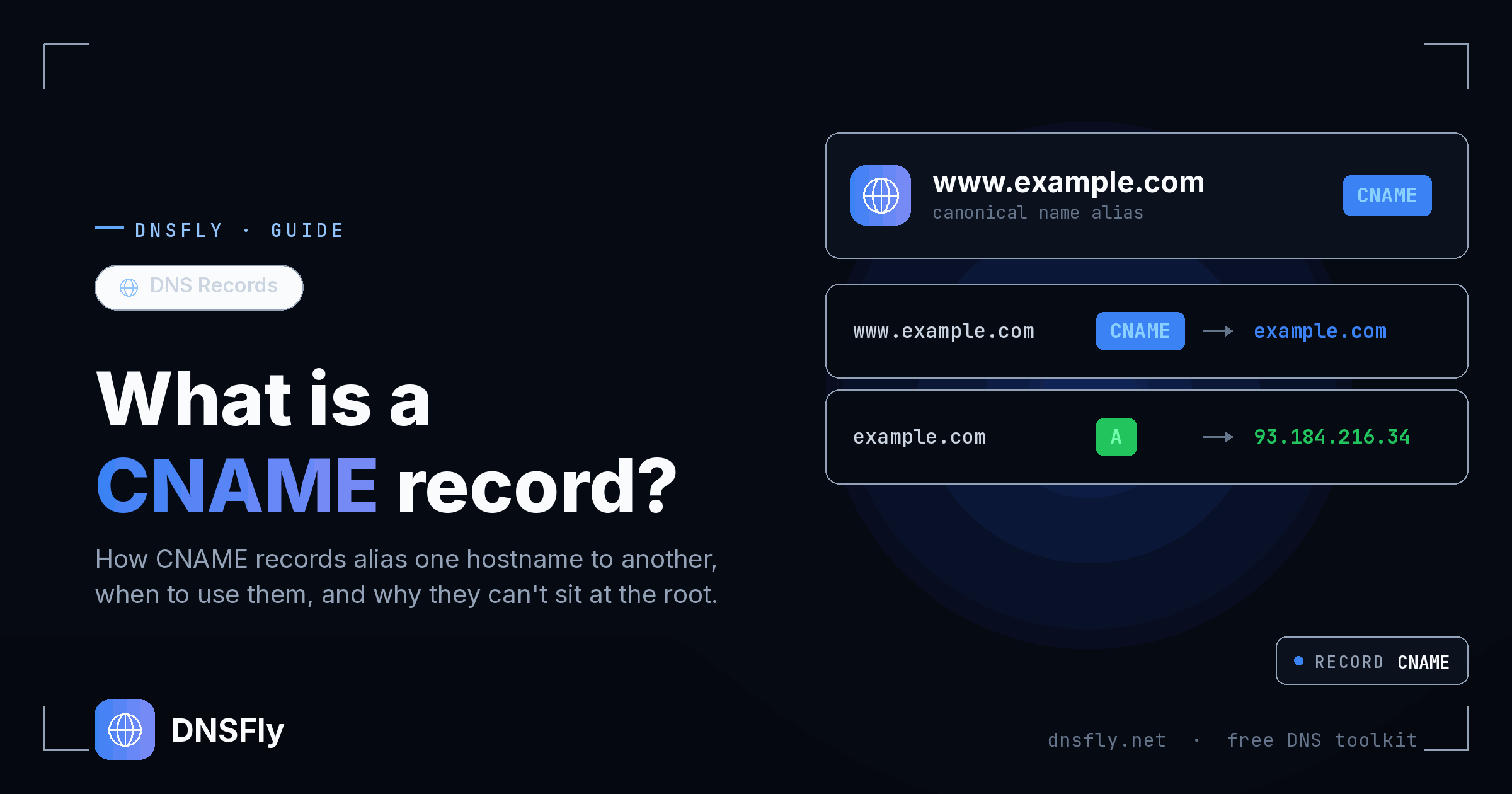
Here's a real example. Say you own example.com and it has an A record pointing to your server's IP address. You also want www.example.com to go to the same server. Instead of creating a second A record with the same IP, you create a CNAME:
www.example.com.   CNAME   example.com.
example.com.       A       93.184.216.34
When someone visits www.example.com, DNS sees the CNAME, follows it to example.com, finds the A record there, and returns the IP address. The visitor ends up at the right server without you managing two separate IP addresses.
The key benefit: if your server's IP address ever changes, you only update the A record on example.com. The CNAME on www.example.com automatically follows — no extra changes needed.
How CNAME Records Work
When your browser needs to load a website, it performs a DNS lookup. Here's what happens step by step when a CNAME record is involved:
Step 1: You type blog.example.com into your browser
Step 2: Your DNS resolver looks up blog.example.com and finds a CNAME record pointing to example.com
Step 3: The resolver now looks up example.com and finds an A record with the IP address 93.184.216.34
Step 4: Your browser connects to 93.184.216.34 and the web server delivers the blog page
Notice that a CNAME always requires at least two DNS lookups — one to find the CNAME, and another to resolve the target domain to an IP address. This is why CNAMEs are slightly slower than A records, though the difference is usually just a few milliseconds and rarely noticeable.
Important: A CNAME record always points to a domain name, never to an IP address. If you need to point directly to an IP, use an A record instead.
Common Uses for CNAME Records
CNAME records are used everywhere on the web. Here are the most common real-world scenarios you'll run into.
Pointing www to your root domain
The most common use case. www.example.com gets a CNAME pointing to example.com, so both addresses reach the same site. You manage only one A record.
Connecting to SaaS platforms
When you use a custom domain with Shopify, GitHub Pages, Mailchimp, or HubSpot, they ask you to create a CNAME record. For example, shop.yourdomain.com → shops.myshopify.com. If Shopify changes their server IP, your site keeps working automatically.
CDN integration
Content delivery networks like Cloudflare, AWS CloudFront, or Fastly use CNAME records to route your traffic through their global servers. You point your subdomain to their CDN hostname, and they handle the rest.
Google Workspace and email verification
Google often asks you to add a CNAME record to verify domain ownership when setting up Google Workspace, Gmail, or Google Sites for your domain.
Managing multiple subdomains
If you run blog.example.com, docs.example.com, and status.example.com on the same server, CNAME records let them all follow the root domain's A record. One IP change updates everything.
CNAME vs A Record
These two record types are the most commonly confused. Here's a clear comparison.
| A Record | CNAME Record | |
|---|---|---|
| Points to | IP address | Another domain name |
| DNS lookups | 1 lookup | 2+ lookups |
| Speed | Slightly faster | Slightly slower |
| Root domain | Can be used | Cannot be used |
| IP changes | Must update manually | Follows automatically |
| Best for | Root domains, static IPs | Subdomains, third-party services |
Rule of thumb: Use an A record for your root domain (example.com) and CNAME records for subdomains (www, blog, shop) — especially when they connect to external services.
CNAME Rules and Restrictions
CNAME records have a few important rules that catch people off guard. Knowing these upfront will save you from DNS headaches.
Cannot be used on the root domain
Your root domain (e.g. example.com) must have SOA and NS records. DNS rules say a CNAME cannot coexist with any other record type on the same name. So root domains need A records, not CNAMEs. Some providers offer ALIAS or ANAME records to work around this.
Cannot coexist with other records
If blog.example.com has a CNAME record, it cannot also have an A record, MX record, TXT record, or any other DNS record. All other records must be on the target domain, not the alias.
Must point to a domain name, not an IP
A CNAME record always points to another domain name (like example.com), never to an IP address (like 93.184.216.34). If you enter an IP, your DNS provider should reject it.
Avoid chaining CNAMEs
A CNAME pointing to another CNAME is technically allowed, but each hop adds a DNS lookup. This slows things down and can cause timeouts. Point your CNAME directly to the final destination whenever possible.
MX and NS records cannot point to CNAMEs
Your email (MX) and nameserver (NS) records must point to A or AAAA records directly — never to a CNAME. This is a common misconfiguration that can break email delivery.
How to Check CNAME Records
You can check any domain's CNAME records using DNSFly's DNS Checker. Here's how:
Step 1: Go to DNSFly CNAME Record Lookup
Step 2: Enter the subdomain you want to check (e.g. www.google.com)
Step 3: The record type is preset to CNAME
Step 4: Click Check — you'll see the CNAME target from 21 global DNS servers
This is especially useful after making DNS changes. You can verify that your CNAME has propagated across the globe and is returning the correct target domain from all locations.
Tip: If you check a root domain for CNAME records and get empty results, that's expected — root domains use A records, not CNAMEs. Try checking a subdomain like www instead.
Common CNAME Mistakes
Setting a CNAME on the root domain
This breaks NS and SOA records, which can take your entire domain offline. Some registrars allow it by mistake — but it violates DNS standards and will cause issues.
Adding other records alongside a CNAME
If you have a CNAME on mail.example.com and also add an MX record there, it will cause conflicts. Move all other records to the target domain instead.
Creating CNAME loops
If a.example.com points to b.example.com and b.example.com points back to a.example.com, you've created an infinite loop. DNS resolvers will eventually time out and the domain won't resolve at all.
Confusing CNAME with HTTP redirect
A CNAME is a DNS-level alias — it doesn't change the URL in the browser. An HTTP redirect (301/302) actually sends the user to a different URL. If you want the browser URL to change, you need a redirect, not a CNAME.
Check Your CNAME Records
Verify your CNAME records are propagated correctly across 21 global DNS servers. Instant results, no signup needed.
Check CNAME Records