DNS Not Working? 7 Ways to Fix It
Websites not loading? Getting DNS errors? Here's how to diagnose and fix the most common DNS problems quickly.
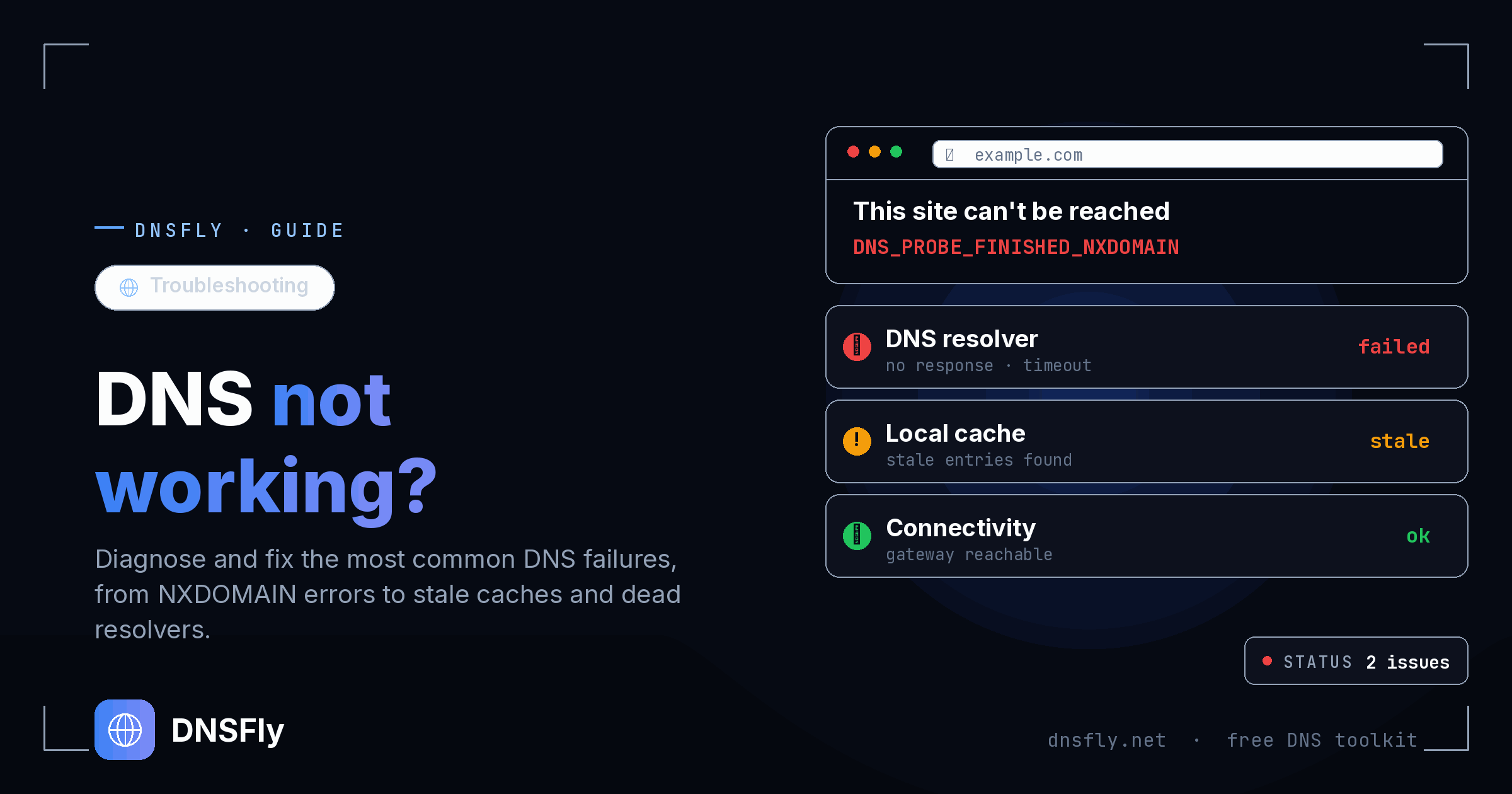
Quick Fixes (Try These First)
- Flush your DNS cache:
ipconfig /flushdns(Windows) - Restart your router
- Switch to Google DNS (8.8.8.8) or Cloudflare (1.1.1.1)
In this article
How to Diagnose DNS Problems
Before fixing, let's confirm it's actually a DNS issue. Run this quick test:
# Test if DNS is the problem
nslookup google.com✓ If you get an IP address
DNS is working. Your problem is likely the server or your connection.
✗ If you get an error
DNS is the problem. Continue with the fixes below.
From my years in hosting support, I'd say 80% of "website not loading" issues are DNS-related. Let's fix them.
Fix 1: Flush DNS Cache
Your computer stores DNS records locally. Sometimes this cache gets corrupted or outdated.
# Windows (Run as Administrator)
ipconfig /flushdns # Mac
sudo dscacheutil -flushcache; sudo killall -HUP mDNSResponder # Linux
sudo systemd-resolve --flush-cachesSuccess rate: Fixes about 40% of DNS issues. Always try this first.
Fix 2: Restart Your Router
Routers also cache DNS and can occasionally glitch. A restart clears everything.
Unplug your router from power
Wait 30 seconds
Plug it back in
Wait 2-3 minutes for it to fully restart
Success rate: Fixes about 20% of DNS issues.
Fix 3: Change DNS Server
Your ISP's DNS servers might be slow or down. Switching to public DNS often fixes this instantly.
Google DNS
8.8.8.8
8.8.4.4
Cloudflare DNS
1.1.1.1
1.0.0.1
How to change DNS on Windows:
Settings → Network & Internet → Change adapter options → Right-click your connection → Properties → IPv4 → Use the following DNS server addresses
Success rate: Fixes about 30% of DNS issues. This is often a permanent improvement.
Fix 4: Check DNS Records
If you own the website, the DNS records themselves might be wrong or not propagated yet.
Check DNS Propagation
Use DNSFly to verify your DNS records are correct and propagated across 20+ global locations.
Check DNS RecordsCommon DNS record issues: Wrong IP address, missing www record, expired domain, incorrect nameservers.
Fix 5: Disable VPN/Proxy
VPNs and proxies route your DNS through their servers, which can cause issues.
Try this: Temporarily disable your VPN or proxy and test the website again. If it works, your VPN's DNS is the problem.
Solution: Configure your VPN to use custom DNS, or switch VPN providers.
Fix 6: Check Firewall
Firewalls can block DNS queries (port 53). This is common with strict security software.
Temporarily disable your firewall/antivirus
Test if DNS works now
If yes, add an exception for DNS (port 53 UDP/TCP)
Re-enable your firewall
Fix 7: Reset Network Settings (Last Resort)
If nothing else works, reset your entire network configuration.
# Windows - Run all these as Administrator
netsh winsock reset netsh int ip reset ipconfig /release ipconfig /renew ipconfig /flushdnsWarning: This resets all network settings. You may need to reconnect to WiFi and reconfigure any custom network settings.