How to Check SSL Certificates
An expired or misconfigured SSL certificate can take your entire site down with a browser warning. Here's how to check yours — and what to look for.
Quick Answer
To check an SSL certificate, use DNSFly's SSL Checker — enter a domain and you'll see the issuer, expiry date, certificate chain, and whether it's valid. You can also click the padlock icon in your browser, or run openssl s_client -connect example.com:443 from the command line. The key things to verify: the certificate isn't expired, it covers your exact domain, and the chain of trust is complete.
What is an SSL Certificate?
An SSL certificate is a small data file that does two things: it encrypts the data between a visitor's browser and your server, and it verifies that your server actually belongs to you.
When a website has a valid SSL certificate, the browser shows a padlock icon and the URL starts with https://. Without one, browsers display warnings that scare visitors away and search engines penalize your rankings.
An SSL certificate contains:
Domain name
Which domain (or domains) the certificate covers
Issuer
The Certificate Authority (CA) that issued it — e.g. Let's Encrypt, DigiCert, Cloudflare, Sectigo
Validity period
The "Not Before" and "Not After" dates — certificates typically last 90 days (Let's Encrypt) or 1 year (paid CAs)
Certificate chain
The chain of trust from your certificate up to a trusted root CA. If any link is missing, browsers won't trust it.
Public key
Used to encrypt the initial connection between the browser and server
SSL vs TLS: SSL is the old protocol. TLS is the modern replacement that all websites actually use today. But everyone still says "SSL certificate" — the terms are used interchangeably.
3 Ways to Check an SSL Certificate
1. DNSFly SSL Checker (quickest)
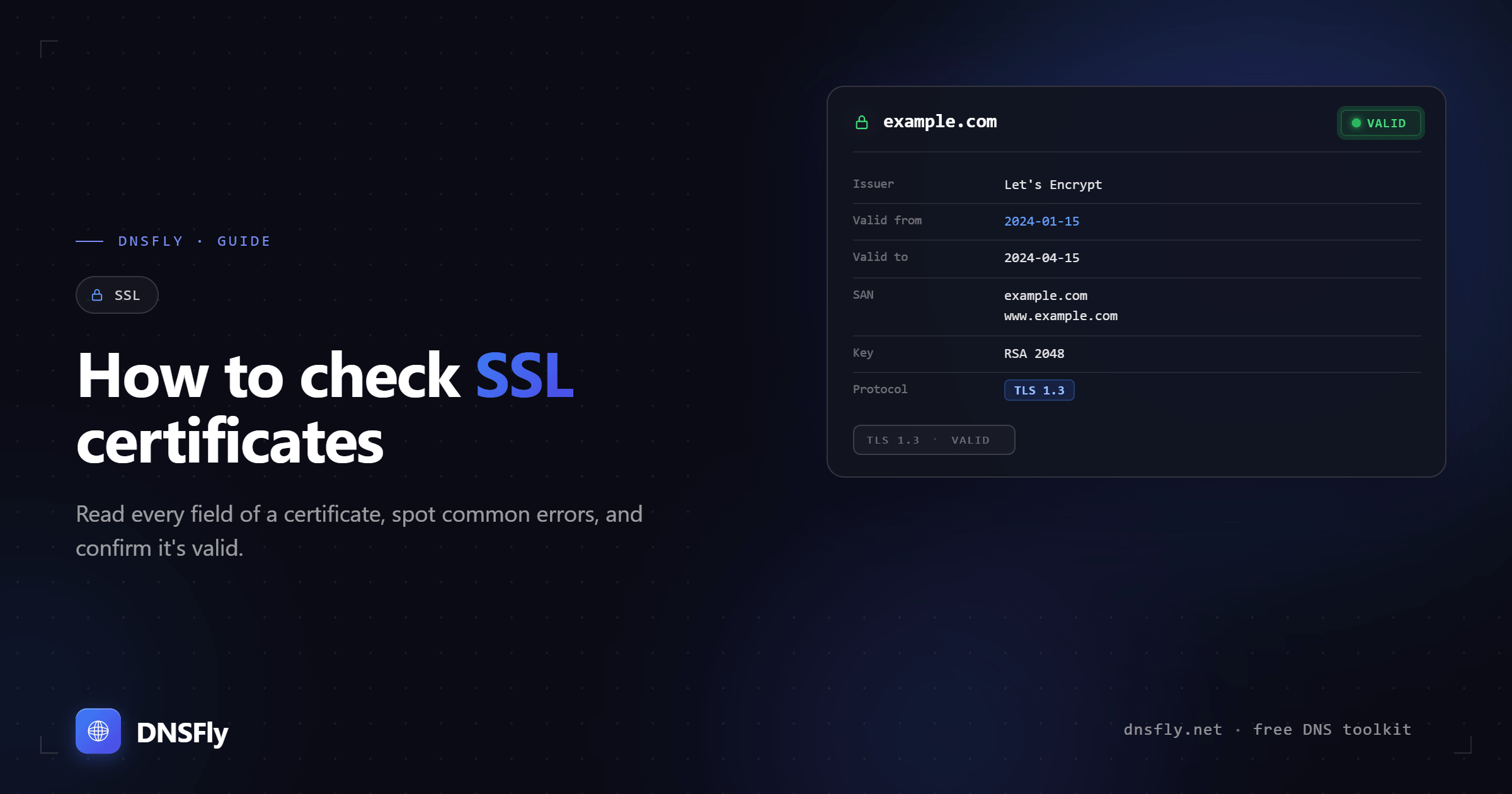
Go to DNSFly SSL Checker, enter a domain, and you'll see:
- • Whether the certificate is valid
- • Issuer and subject (who issued it and for which domain)
- • Expiry date and days remaining
- • Certificate chain (root → intermediate → leaf)
- • Protocol and cipher information
2. Browser padlock
Click the padlock icon in your browser's address bar. In Chrome, click "Connection is secure" → "Certificate is valid" to see full details including the expiry date and issuer.
Limitation: You can only check sites you're currently visiting.
3. Command line
For developers and sysadmins:
# Check SSL certificate for a domain
openssl s_client -connect example.com:443 -servername example.com 2>/dev/null | openssl x509 -noout -dates

# Output:
notBefore=Jan  1 00:00:00 2026 GMT
notAfter=Apr  1 00:00:00 2026 GMT

# See full certificate details
openssl s_client -connect example.com:443 -servername example.com 2>/dev/null | openssl x509 -noout -text
What to Look For
When checking an SSL certificate, these are the five things that matter:
| Check | Good | Problem |
|---|---|---|
| Expiry date | 30+ days remaining | Expired or expiring within 7 days |
| Domain match | Certificate covers your exact domain | Domain mismatch (wrong domain on cert) |
| Certificate chain | Complete chain to trusted root | Missing intermediate certificate |
| Issuer | Trusted CA (Let's Encrypt, DigiCert, etc.) | Self-signed or unknown issuer |
| Protocol | TLS 1.2 or TLS 1.3 | TLS 1.0 or 1.1 (deprecated) |
Common SSL Issues and How to Fix Them
Certificate expired
The most common issue. Browsers show "Your connection is not private" and most visitors will leave.
Fix: Renew your certificate. If you use Let's Encrypt, check that your auto-renewal cron job or certbot timer is running. If you're on Cloudflare or a managed host, renewal should be automatic — contact support if it isn't.
Domain name mismatch
The certificate was issued for www.example.com but you're visiting example.com (or vice versa). Browsers treat these as different domains.
Fix: Get a certificate that covers both. Most CAs include both the bare domain and www variant. Alternatively, use a wildcard certificate (*.example.com) which covers all subdomains.
Incomplete certificate chain
Your server sends the leaf certificate but not the intermediate certificate(s). Most desktop browsers can figure it out, but mobile browsers and API clients often can't — resulting in trust errors.
Fix: Configure your web server to send the full chain. Your CA provides intermediate certificates — concatenate them with your leaf certificate in the correct order.
Mixed content warnings
Your page loads over HTTPS, but some resources (images, scripts, stylesheets) are still loaded over HTTP. Browsers may block these resources or show warnings.
Fix: Update all resource URLs to use https:// or protocol-relative URLs (//). Check your HTML, CSS, and database for hardcoded http:// links.
Self-signed certificate
The certificate wasn't issued by a trusted CA. Common on development servers, but browsers will show a warning on production sites.
Fix: Replace with a certificate from a trusted CA. Let's Encrypt is free and takes minutes to set up. There's no reason to use self-signed certificates in production.
SSL Certificate Types
Not all certificates are the same. The main difference is what the CA verifies before issuing:
| Type | Validates | Cost | Best For |
|---|---|---|---|
| DV (Domain Validation) | You control the domain | Free (Let's Encrypt) | Most websites, blogs, apps |
| OV (Organization Validation) | Domain + organization exists | $50-200/year | Business websites |
| EV (Extended Validation) | Domain + org + legal identity | $100-500/year | Banks, e-commerce, enterprises |
| Wildcard | Domain + all subdomains | Free-$300/year | Sites with many subdomains |
For most websites, a free DV certificate from Let's Encrypt is all you need. The encryption is identical across all types — the only difference is the level of identity verification.
SSL Best Practices
Enable auto-renewal
Let's Encrypt certificates expire every 90 days. Use certbot or your hosting provider's auto-renewal to avoid manual work. Most managed platforms (Cloudflare, Vercel, Netlify) handle this automatically.
Force HTTPS with HSTS
Add the Strict-Transport-Security HTTP header to tell browsers to always use HTTPS. This prevents downgrade attacks where an attacker forces the browser to use HTTP.
Use TLS 1.2 or 1.3
Disable TLS 1.0 and 1.1 — they have known vulnerabilities. TLS 1.3 is fastest and most secure. All modern browsers support TLS 1.2+.
Redirect HTTP to HTTPS
Set up a 301 redirect from http:// to https:// so visitors and search engines always reach the secure version. This also consolidates your SEO signals to one URL.
Monitor expiry dates
Even with auto-renewal, things can break. Set up a monitoring service (or bookmark DNSFly's SSL Checker) and check your certificate periodically.
Check Your SSL Certificate
Verify your certificate is valid, check the expiry date, and inspect the full certificate chain for any domain.
Need to buy or renew an SSL certificate?
SSL.com is a trusted Certificate Authority offering DV, OV, EV, and wildcard certificates that are trusted by all major browsers.
DNSFly earns a commission if you sign up through this link, at no extra cost to you.