How to Flush DNS Cache
Website not loading or showing old content? Clearing your DNS cache might fix it. Here's how to do it on every platform.
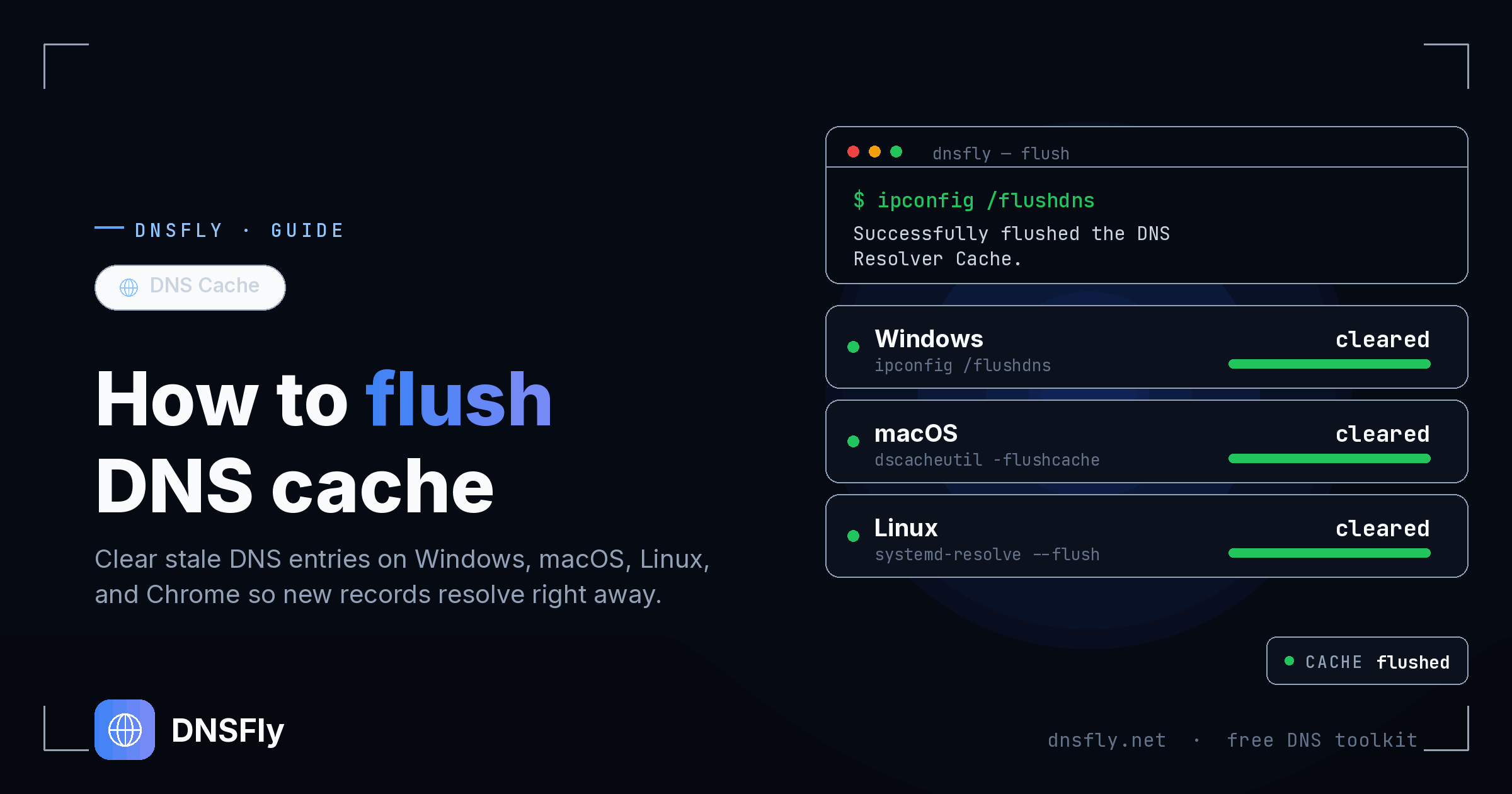
Quick Commands
Windows: ipconfig /flushdns
Mac: sudo dscacheutil -flushcache; sudo killall -HUP mDNSResponder
Linux: sudo systemd-resolve --flush-caches
Chrome: chrome://net-internals/#dns → Clear host cache
In this article
What is DNS Cache?
DNS cache is a temporary storage on your computer that saves DNS lookup results. When you visit a website, your computer remembers the IP address so it doesn't have to look it up again next time.
This makes browsing faster, but sometimes the cache holds outdated information. If a website changed its IP address but your computer still has the old one cached, you might not be able to access the site.
Flushing (clearing) the DNS cache forces your computer to get fresh DNS information the next time you visit any website.
When to Flush DNS Cache
You should flush your DNS cache when:
- A website isn't loading but works for others
- You're seeing an old version of a website
- You just changed your DNS server settings
- You updated DNS records for your own website
- You're getting DNS-related errors
From my hosting support days, I'd estimate 30% of "my website isn't working" tickets were solved by simply flushing the customer's DNS cache.
Flush DNS on Windows
Works on Windows 11, 10, 8, and 7.
Open Command Prompt as Administrator
Press Win + S, type cmd, right-click "Command Prompt" and select "Run as administrator"
Run the flush command
Type the following and press Enter:
ipconfig /flushdnsConfirm success
You should see: "Successfully flushed the DNS Resolver Cache."
Optional: You can also release and renew your IP address with these commands:
ipconfig /release ipconfig /renewFlush DNS on Mac
The command varies slightly by macOS version, but this works for most modern Macs (Monterey, Ventura, Sonoma):
Open Terminal
Press Cmd + Space, type "Terminal", press Enter
Run the flush command
sudo dscacheutil -flushcache; sudo killall -HUP mDNSResponderEnter your password
Type your Mac login password when prompted (you won't see characters as you type).
Commands for older macOS versions:
Yosemite (10.10): sudo discoveryutil mdnsflushcache
Lion to Mavericks: sudo killall -HUP mDNSResponder
Snow Leopard: sudo dscacheutil -flushcache
Flush DNS on Linux
Linux commands vary by distribution and DNS service. Here are the most common:
Ubuntu / Debian (systemd-resolved)
sudo systemd-resolve --flush-cachesOr on newer systems: sudo resolvectl flush-caches
Using dnsmasq
sudo systemctl restart dnsmasqUsing nscd
sudo systemctl restart nscdOr: sudo /etc/init.d/nscd restart
Note: Many Linux distros don't cache DNS by default. If you get "service not found" errors, your system might not need flushing.
Flush DNS in Browsers
Browsers maintain their own DNS cache separate from your operating system. You may need to clear both.
Google Chrome
1. Type in the address bar:
chrome://net-internals/#dns2. Click "Clear host cache"
3. Also clear sockets at: chrome://net-internals/#sockets → "Flush socket pools"
Mozilla Firefox
1. Type in the address bar:
about:networking#dns2. Click "Clear DNS Cache"
Microsoft Edge
1. Type in the address bar:
edge://net-internals/#dns2. Click "Clear host cache"
Safari
Safari uses the system DNS cache. Flushing macOS DNS (see above) will also clear Safari's DNS.
Still Having DNS Issues?
Check if your DNS changes have propagated globally. DNSFly tests your domain from 20+ locations worldwide.
Check DNS Propagation