What is DNS TTL?
TTL is one of the most important DNS settings you've probably never thought about. Understanding it can save you hours of waiting during DNS changes.
In this article
What TTL Means
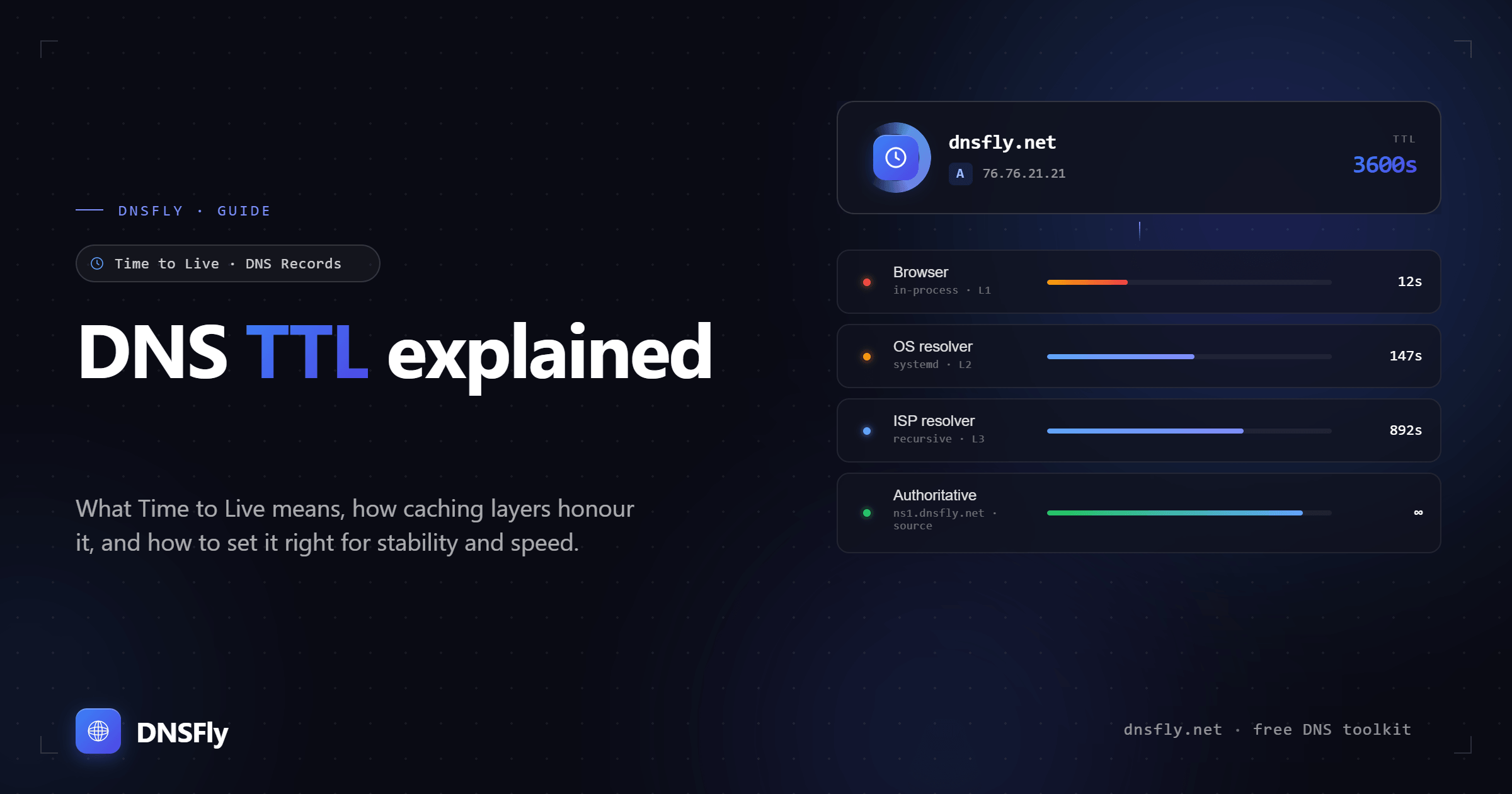
TTL stands for Time to Live. In DNS, TTL is a value (measured in seconds) that tells DNS servers and resolvers how long they should cache a DNS record before checking for an update.
Simple Definition
TTL = "Keep this DNS record in your cache for X seconds. After that, fetch a fresh copy."
For example, if your A record has a TTL of 3600, DNS servers will cache your IP address for 1 hour (3600 seconds) before checking if it has changed.
How TTL Works
Here's what happens when someone visits your website:
User types your domain
Their browser asks their DNS resolver for your IP address.
DNS resolver checks cache
If it has a cached record that hasn't expired (TTL not reached), it returns that immediately.
If expired or not cached
The resolver queries your authoritative DNS server for fresh data.
New record is cached
The resolver stores the new record and starts the TTL countdown again.
This is why DNS changes take time to propagate - servers worldwide have cached your old record and won't check for updates until their cached TTL expires.
Common TTL Values
TTL is always specified in seconds. Here are common values and their human-readable equivalents:
| TTL (seconds) | Human Readable | Use Case |
|---|---|---|
| 60 | 1 minute | Failover services, testing |
| 300 | 5 minutes | Frequent changes expected |
| 3600 | 1 hour | Standard, balanced choice |
| 14400 | 4 hours | Stable records |
| 86400 | 24 hours | Rarely changing records |
| 604800 | 1 week | Very stable, maximum caching |
When to Use Low vs High TTL
Use Low TTL (60-300s) When:
- • Planning to change DNS soon
- • Using DNS-based failover
- • Testing new configurations
- • Migrating to new hosting
- • Records change frequently
Use High TTL (3600-86400s) When:
- • Records are stable/rarely change
- • Want faster DNS resolution
- • Reducing load on DNS servers
- • Better resilience if DNS goes down
- • Cost savings (fewer queries)
Pro Tip: Lower your TTL 24-48 hours before making DNS changes. This ensures caches have the low TTL value when you make the actual change.
How to Check Your TTL
You can check the current TTL of your DNS records using command line tools:
# Using dig (Mac/Linux)
dig example.com A +noall +answer # Output shows TTL (the number before "IN")
example.com. 3600 IN A 93.184.216.34Check TTL with DNSFly
Our DNS propagation checker shows TTL values alongside your DNS records from 20+ global locations.
Check DNS RecordsHow to Change TTL
TTL is set in your DNS provider's control panel. The exact steps vary by provider, but generally:
Log into your DNS provider (Cloudflare, GoDaddy, Namecheap, etc.)
Navigate to DNS settings or DNS zone editor
Find the record you want to modify
Look for "TTL" field (sometimes hidden under "Advanced")
Enter new value in seconds and save
Note: Some providers show TTL as a dropdown (Auto, 1 min, 5 min, etc.) instead of raw seconds. "Auto" typically means the provider's default, usually 300-3600 seconds.