How to Check DNS Propagation
Made DNS changes and want to verify they're working? Here are three reliable methods to check and track DNS propagation worldwide.
In this article
Why Check DNS Propagation?
When you update DNS records, the changes don't take effect instantly. They need to propagate across thousands of DNS servers worldwide. Checking propagation helps you:
- Verify changes are correct - Catch configuration errors early
- Track global progress - See which regions have updated
- Troubleshoot issues - Identify why some users can't reach your site
- Plan migrations - Know when it's safe to decommission old servers
Method 1: Online DNS Checker Tools
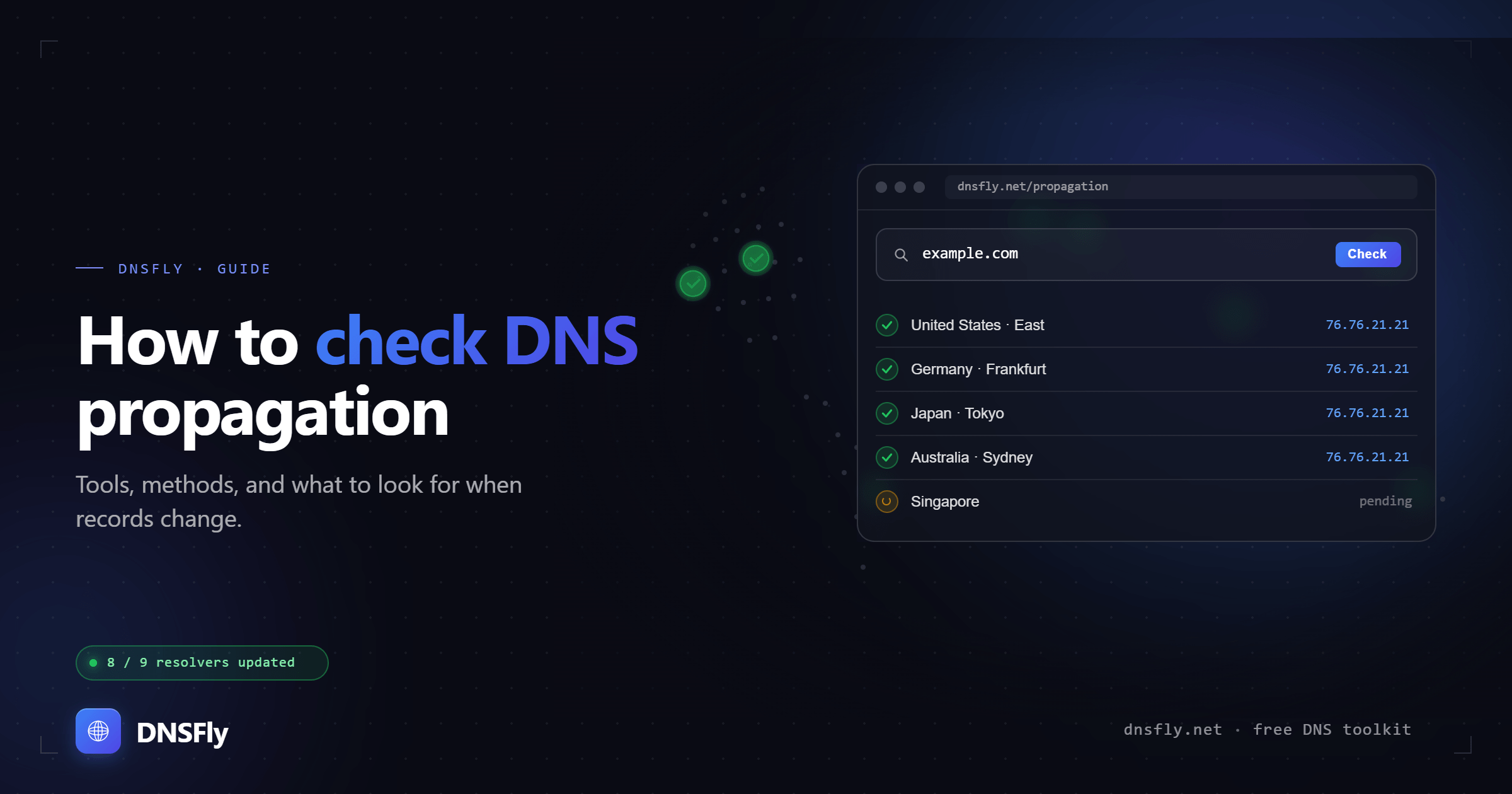
The easiest and most comprehensive way to check DNS propagation. Online tools query multiple DNS servers across different geographic locations and show you the results in one view.
Check DNS Propagation Now
DNSFly checks your DNS records across 20+ global locations simultaneously. See instant results from North America, Europe, Asia, and more.
Launch Live Global DNS Propagation CheckerHow to use an online DNS checker:
Enter your domain name (e.g., example.com)
Select the record type (A, AAAA, MX, CNAME, etc.)
Click search and review results from multiple locations
This method is recommended because it gives you a global view instantly. From my hosting support experience, most DNS issues become obvious when you can see results from 20+ locations at once.
Method 2: Command Line (nslookup/dig)
For technical users, command line tools let you query specific DNS servers directly. This is useful for targeted troubleshooting.
# Windows - Using nslookup
nslookup example.com 8.8.8.8 # Mac/Linux - Using dig
dig @8.8.8.8 example.com ACommon DNS servers to query:
8.8.8.81.1.1.19.9.9.9208.67.222.222Limitation: You can only check one server at a time. For a global view, you'd need to run multiple queries manually.
Method 3: Browser Developer Tools
A quick way to see what DNS record your browser is currently using. This shows your local view, not global propagation.
Open your browser's Developer Tools (F12 or Cmd+Option+I)
Go to the Network tab
Visit your website and look at the request details
The "Remote Address" shows the resolved IP
Note: This only shows what your computer sees. Your local DNS cache and ISP settings affect this result. Clear your DNS cache first for accurate results.
Reading Your Results
When you check DNS propagation, here's how to interpret what you see:
✓ All locations show same (new) record
Propagation is complete. Your DNS change has spread globally.
⚠ Mixed results (some old, some new)
Propagation is in progress. Wait a few more hours and check again.
✗ All locations show old record
Change hasn't propagated yet. Verify your DNS configuration is saved correctly, or work through our DNS propagation troubleshooting guide.
? Some locations show errors
Could indicate DNS misconfiguration or the record doesn't exist. Double-check your settings.
Common Propagation Scenarios
Why you're checking propagation usually falls into one of a few situations. Each one changes what "done" actually looks like, so it helps to know which one you're in before you read the results.
Migrating to a new host
You changed the A record to point at a new server's IP. Keep the old server running until the checker shows the new IP from every location. Decommission it too early and visitors still on the old record hit a dead host.
Switching email providers
New MX records route your mail to a different server. Email is unforgiving, so confirm the new MX has propagated widely before you turn off the old mailbox, or messages sent during the gap can bounce or land in the wrong place.
Changing nameservers
A nameserver change is the slowest kind to propagate because it depends on the parent TLD servers and your registrar's TTL, not just your own records. Expect this one to take the longest, often close to the full 48 hours.
Adding a CDN or SSL certificate
A CNAME pointing at a CDN endpoint needs to resolve everywhere before you rely on it for caching or certificate validation. Check the CNAME globally first, then issue the certificate.
In every case, the global view is what matters. A single check from your own machine only tells you what one resolver sees. For an estimate of how long each of these takes, see our guide on how long DNS propagation takes.
Troubleshooting Your Check
Propagation checks often show results that look contradictory. Here are the situations that confuse people most, and what each one actually means.
The checker shows the new record, but your site still loads the old one
This is almost always your local cache, not propagation. Your computer and browser hold their own DNS cache. Flush your DNS cache and try again in a private window.
The checker shows full propagation, but some users still see the old site
Their ISP cached your old record under the previous TTL and is holding it until that timer expires. There's nothing to fix on your end. The remaining wait equals the old record's TTL, not the new one.
Propagation is stuck at the same few locations for hours
Those resolvers are honoring a long TTL from your old record. If you set a high TTL before the change, that's the price. The stuck locations clear once the old TTL counts down.
The checker reports "no record found"
Usually a wrong record type, a typo in the hostname, or a record that was never saved. Confirm you selected the right type (an A query won't find an AAAA record) and that the change is actually live in your DNS provider's zone editor.
Results flip between the old and new value
You likely have two conflicting records for the same name, or a round-robin setup you forgot about. Open your zone and make sure only the intended record exists.
Tip: Before you make a change, lower the record's TTL a day in advance. The old, low TTL means resolvers drop the stale record quickly, so the new one shows up almost everywhere within minutes instead of hours.